

If you’ve tried AI video tools before, you already know the biggest problem isn’t “generation”—it’s getting a usable result fast, iterating without wasting credits, and reusing what worked. That’s why veoe veo3 video generator is worth a look: it’s positioned as a Veo 3 AI video generator with audio, plus a set of workflow features that make creation feel repeatable instead of random.
What is VEOE?
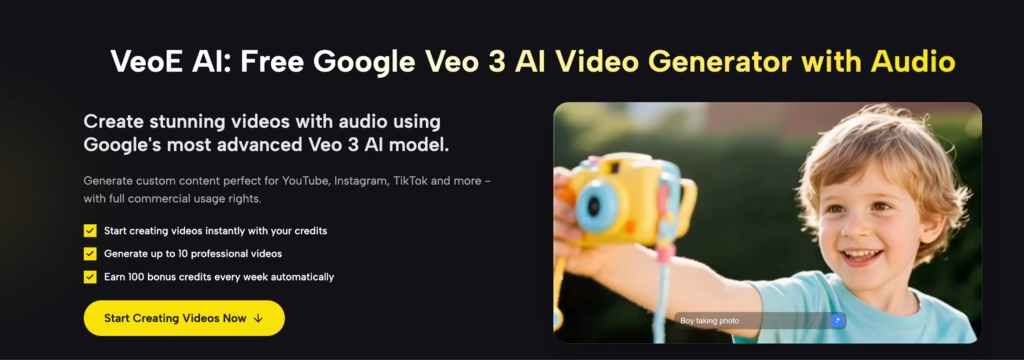
VeoE AI presents itself as a Google Veo 3 AI video generator with audio, supporting both text-to-video and image-to-video workflows. On the main generator, you’ll see practical controls like aspect ratio (16:9 / 9:16), seed, public visibility, and required credits before you generate.
In short: you bring a concept (text or images), VeoE generates a video with synchronized audio, and you download the result.
Advantages of VEOE Veo3 Video Generator
This section is the “conversion core.” Below are the four advantages and the exact workflows that make each one useful.
1. Free credits
VeoE puts the credit system upfront:
- Get started free: New users get 100 FREE credits instantly.
- Keep testing weekly: It also says you can earn 100 more credits weekly through daily check-ins.
- Know the cost before you click: The generator shows Required Credits (example shown as 10 on the main UI), so you can decide whether to run a variant before spending credits.
Why this matters: it supports the “correct” creative habit—test small → learn fast → iterate with intent, instead of burning credits guessing.
2. Veo 3 Prompt Generator
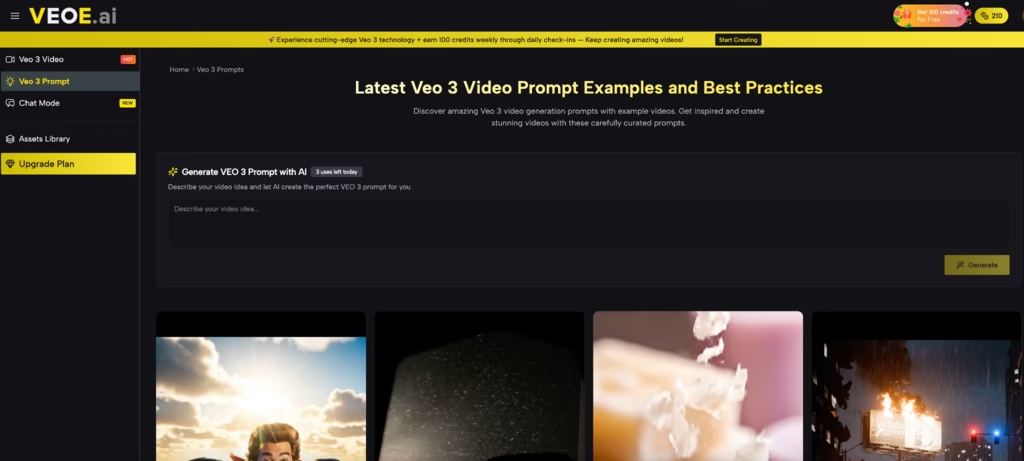
On the Veo 3 Prompt page, VeoE offers a dedicated AI prompt helper:
- You describe your video idea, and it will “create the perfect VEO 3 prompt for you.”
- The page shows a daily usage counter (example: “3 uses left today”), making limits clear rather than hidden.
Workflow that works well:
Write your rough idea (scene + subject + vibe).
Let the prompt generator expand it into a structured prompt.
Paste it into generation, then tweak only 1–2 variables (duration, camera motion, lighting) rather than rewriting everything.
3. Chat to Video
VeoE’s Chat Mode is built to replace “prompt engineering” with a conversational flow:
- The page positions it as: “Just share your idea, create cinematic videos with sound.”
- It provides a clear 4-step conversation workflow:
Describe your video vision
AI analyzes & plans
Generate with Veo 3
Refine through conversation
Why creators like this approach: you can iterate by saying things like “make the pace faster” or “add more dramatic lighting,” instead of rebuilding prompts from scratch.
It also suggests quick-start directions (like “Animate Image” or “Short Film”) so you aren’t starting from a blank page.
4. Assets Library
The Assets Library is designed to make scaling easier:
- Automatic saving: Every generated video is automatically saved to your library.
- Fast discovery: You can use smart filtering (e.g., generations, uploads, favorites, plus filters by length/style/date).
- Creation “DNA” tracking: Each asset includes prompts, reference images, model parameters, and a generation timeline—so you can replicate what worked.
- One-click evolution: Reuse stored videos as references, adjust parameters, and evolve results without restarting from zero.
If you publish in series (or run ad variants), this is a big deal: it turns your best outputs into reusable building blocks.
How to Use VEOE Veo3 Video Generator
1. Pick your starting point
- Use Text-to-Video when you have a clear concept/script.
- Use Image-to-Video when you want the model to follow a visual reference.
- Choose the fastest “help layer”
- If you’re stuck writing prompts: use Generate VEO 3 Prompt with AI.
If you want iterative control, use Chat Mode and refine through conversation.
2. Generate with guardrails
- Set aspect ratio (9:16 for Shorts/Reels, 16:9 for YouTube).
- Use seed if you want consistent variations.
Check Required Credits before you generate.
3. Save and reuse
- Keep strong results in Assets Library, then reuse the “DNA” (prompt + parameters) for fast variations next time.
Read More: 7 Best Plagiarism Remover and Checker Tools in 2026
Conclusion
VeoE stands out because it’s not just a generator—it’s a workflow: free credits to test ideas, a prompt generator to reduce prompt friction, Chat-to-Video to iterate naturally, and an assets library to reuse what works.
If you want a Veo 3-style experience that’s built for repeat creators (not one-off demos), start here: veoe veo3 video generator.
Common Questions About VEOE Veo3 Video Generator
Is VeoE free to use?
VeoE promotes 100 free credits on login, and also says you can earn 100 more credits weekly through daily check-ins.
What do I get on the free plan?
The pricing page lists a “Free plan” with 100 free credits, and example limits like up to 10 Veo3 Basic videos and up to 2 Veo3 Premium videos.
Can I download videos without a watermark?
“Download Video Without Watermark” is listed under download results on the pricing page (including the free plan section).
How do I avoid wasting credits on bad prompts?
Use the AI prompt generator (describe your idea → get a Veo 3 prompt), or use Chat Mode to refine with small conversational edits instead of rerolling from scratch.
How do I scale output for a content series?
Use the Assets Library to keep your successful videos’ prompts and parameters (“DNA tracking”), then reuse and evolve them with one-click remastering.