
If you’ve been checking your Google Search Console and suddenly notice warnings related to canonical errors, you’re probably wondering what they mean and whether they can hurt your website’s rankings.
The short answer is yes. Canonical errors can confuse Google, cause indexing problems, and even reduce your organic traffic if they are not fixed properly.
The good news is that canonical errors are usually easy to understand once you know the basics. In this guide, you’ll learn what a canonical error is, why it happens, how it affects SEO, and how to fix it step by step.
What Is a Canonical Error?
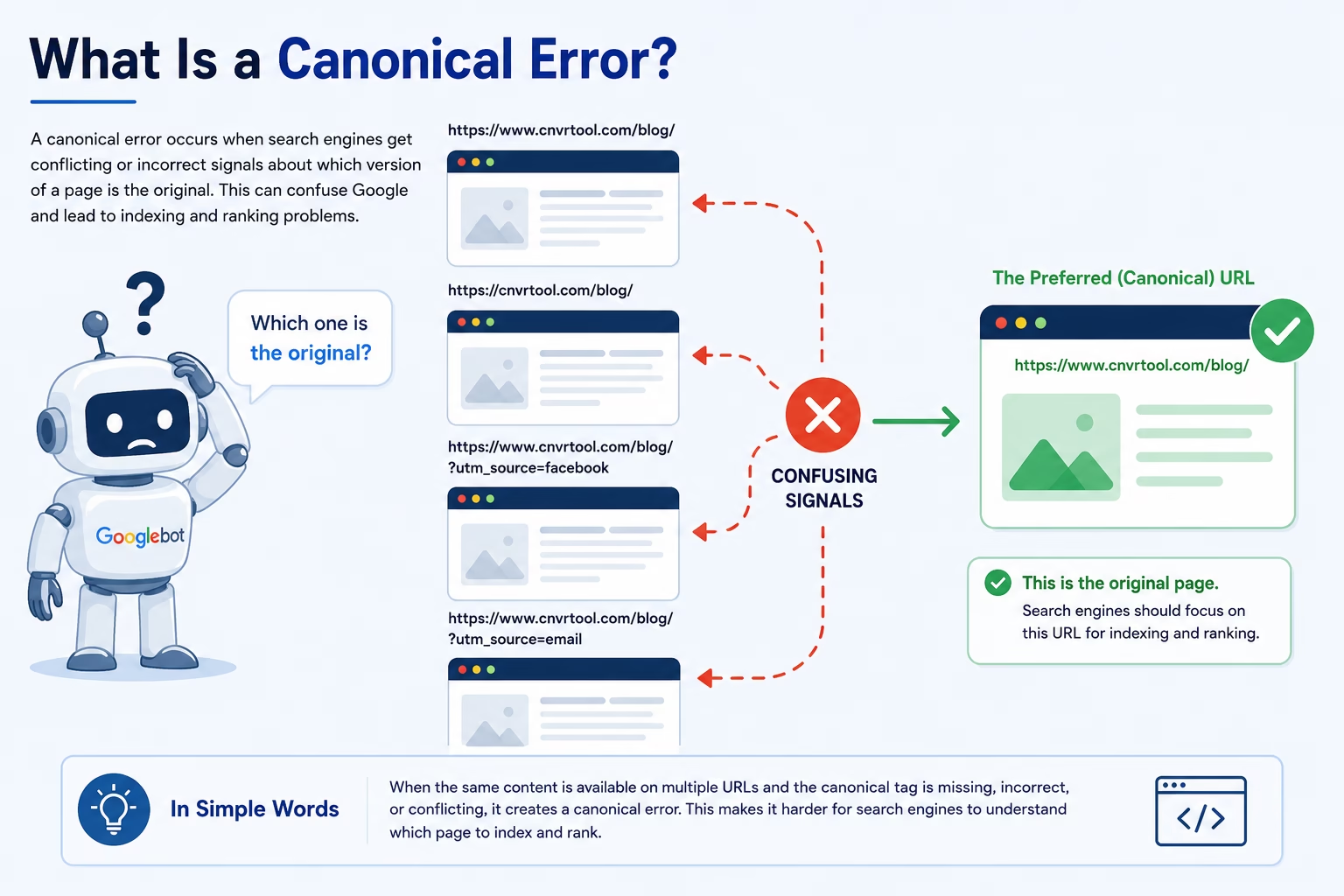
Before understanding a canonical error, you first need to understand the word canonical.
In SEO, a canonical URL is the version of a page that you want search engines to treat as the main or original version.
Think about it like this.
Imagine you have the same book stored in four different rooms of your house. A visitor wants to read the book, but nobody tells them which copy is the original. They might choose any version.
Google faces a similar problem when the same content exists on multiple URLs.
For example:
- https://cnvrtool.com/blog
- https://www.cnvrtool.com/blog/
- https://cnvrtool.com/blog?utm_source=facebook
- https://cnvrtool.com/blog?utm_source=email
To a human visitor, these URLs may show exactly the same page.
To Google, they can appear as four separate pages.
A canonical tag tells Google:
“This is the main version of the page. Please treat this URL as the original.”
When that signal is missing, incorrect, or conflicting, Google may become confused. This situation is known as a canonical error.
What Is a Canonical Tag?
A canonical tag is a small piece of HTML code placed inside a webpage.
Visitors never see it.
Search engines read it when they crawl your page.
A typical canonical tag looks like this:
<link rel="canonical" href="https://www.cnvrtool.com/blog/" />


Let’s break it down:
- rel=”canonical” tells search engines that this is a canonical instruction.
- href contains the preferred URL.
- The URL inside the tag is the page Google should consider the main version.
You can think of a canonical tag as a signpost for search engines.
Without the signpost, Google has to guess.
With the signpost, Google receives clear directions.
Why Canonical Tags Are Important
Many website owners think canonical tags are only for large websites.
That isn’t true.
Even small blogs can generate duplicate URLs without realizing it.
Prevent Duplicate Content Problems
Search engines don’t want to store multiple copies of the same content.
When Google finds identical pages across different URLs, it tries to determine which one should appear in search results.
Without canonical tags, Google may:
- Index the wrong version
- Ignore your preferred page
- Split ranking signals
- Waste crawl resources
Canonical tags remove that confusion.
Consolidate Ranking Signals
Imagine three versions of the same page.
- Page A receives 10 backlinks.
- Page B receives 8 backlinks.
- Page C receives 5 backlinks.
Without a canonical tag, Google may treat these as separate pages.
Instead of one strong page with 23 backlinks, Google sees three weaker pages.
A canonical tag helps combine these signals into one authoritative URL.
This often improves SEO performance and ranking stability.
Why Canonical Errors Hurt SEO
A canonical error isn’t just a technical issue.
It can directly affect your website’s visibility in search results.
Ranking Signals Become Split
When Google sees multiple versions of the same content, authority may become divided among those URLs.
Instead of building strength around one page, link equity gets distributed across several pages.
This can reduce rankings for competitive keywords.
Wrong Pages Get Indexed
Sometimes Google chooses a URL that you never intended to rank.
For example, a tracking parameter version of your page may get indexed instead of the clean URL.
This creates a poor user experience and weakens your SEO strategy.
Crawl Budget Gets Wasted
Think of Googlebot as a delivery driver.
Every day, it has a limited amount of time to visit websites.
If it spends hours crawling duplicate URLs, it has less time to discover new content.
For large websites, crawl budget waste can become a serious issue.
Common Types of Canonical Errors
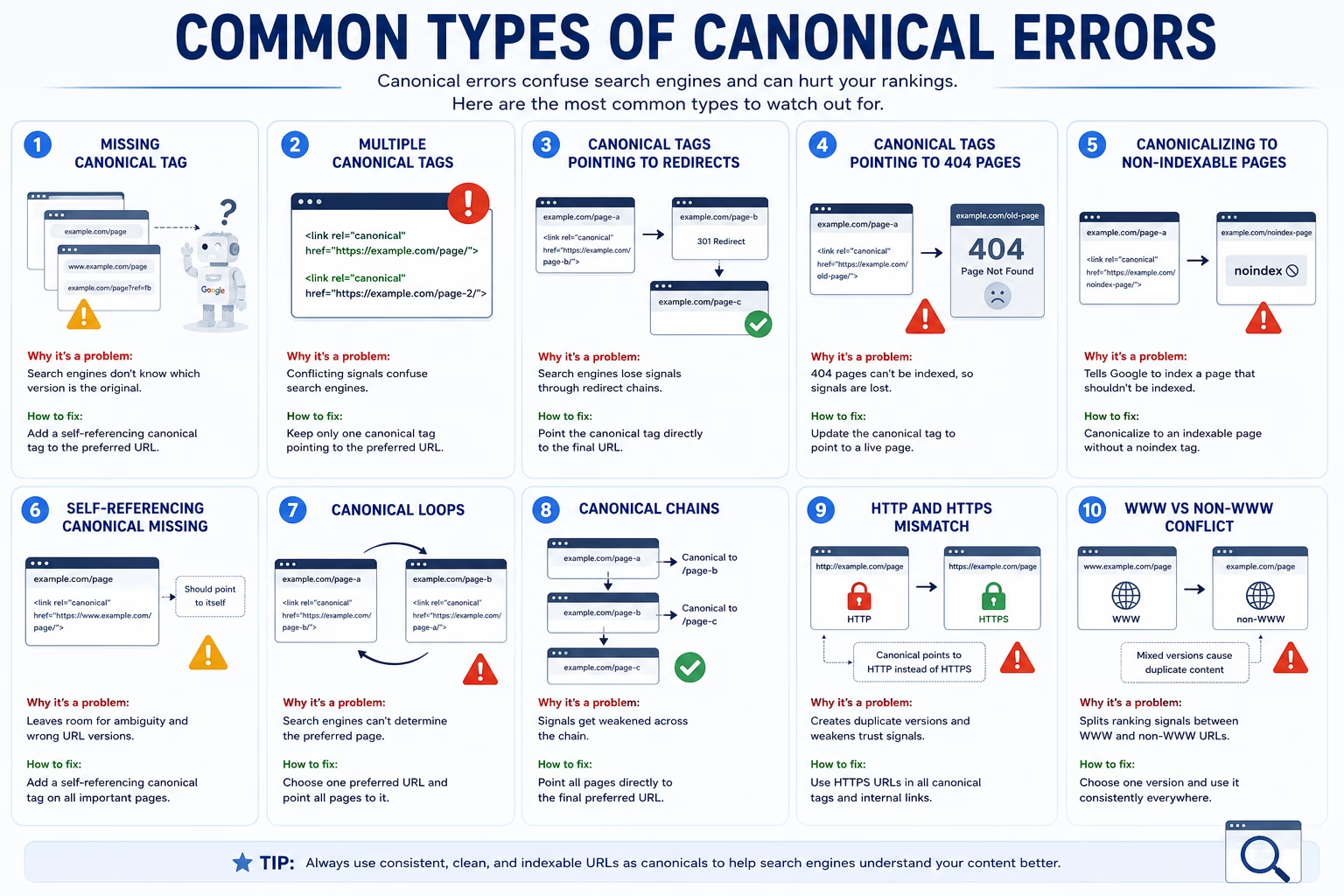
Canonical errors can happen for many reasons, including incorrect website settings, WordPress plugin conflicts, website migrations, or simple human mistakes. While these issues may seem technical, understanding them is actually quite straightforward.
Think of a canonical tag as a signpost that tells Google which version of a page should be treated as the original. When that signpost is missing, broken, or pointing in the wrong direction, search engines become confused. This confusion can lead to indexing problems, duplicate content issues, and even ranking losses.
Let’s look at the most common canonical errors that website owners encounter and learn how to fix them.
1. Missing Canonical Tag
A missing canonical tag means a page does not provide any instructions to search engines about which URL should be considered the preferred version.
For example, suppose your article can be accessed through these URLs:
https://www.cnvrtool.com/blog/
https://cnvrtool.com/blog/
https://www.cnvrtool.com/blog/?utm_source=facebook
https://www.cnvrtool.com/blog/?utm_source=email
Without a canonical tag, Google must determine on its own which version should rank in search results.
Although Google often makes a reasonable choice, it may not select the URL you want.
Why this is a problem:
- Google may index the wrong URL.
- Ranking signals can become divided.
- Duplicate content issues may occur.
How to fix it:
Add a canonical tag like this:
<link rel="canonical" href="https://www.cnvrtool.com/blog/" />This clearly tells search engines which URL should be treated as the original version.
2. Multiple Canonical Tags
This error occurs when a page contains more than one canonical tag.
A common cause is having multiple SEO plugins installed or a theme that generates its own canonical tags.
For example:
<link rel="canonical" href="https://www.cnvrtool.com/blog/" />
<link rel="canonical" href="https://www.cnvrtool.com/category/blog/" />
Now Google receives two different instructions.
It’s like asking two people for directions and getting two completely different answers.
Why this is a problem:
- Creates conflicting signals.
- Search engines may ignore both tags.
- Indexing becomes unpredictable.
How to fix it:
Check your page source and ensure only one canonical tag exists on each page.
3. Canonical Tag Points to a Redirect
A canonical tag should always point directly to the final destination page.
Consider this example:
https://www.cnvrtool.com/blog/Canonical points to:
https://cnvrtool.com/blog/But that URL redirects to:
https://www.cnvrtool.com/blog/Google now has to process both the canonical and the redirect.
Why this is a problem:
- Creates unnecessary complexity.
- Weakens canonical signals.
- Slows crawling and indexing.
How to fix it:
Always point the canonical tag directly to the final live URL.
4. Canonical Tag Points to a 404 Page
A 404 page means the page no longer exists.
Suppose you deleted an old article but forgot to update the canonical tag.
Your page contains:
<link rel="canonical" href="https://www.cnvrtool.com/old-seo-guide/" />But the URL now returns:
404 Not FoundGoogle cannot consolidate ranking signals to a page that doesn’t exist.
Why this is a problem:
- Search engines become confused.
- Link equity can be lost.
- Crawl budget is wasted.
How to fix it:
Update the canonical tag so it points to a live page returning a 200 status code.
5. Canonical Tag Points to a Noindex Page
This is one of the most common mistakes found during SEO audits.
Imagine Page A contains:
<link rel="canonical" href="https://www.cnvrtool.com/blog/" />But the target page includes:
<meta name="robots" content="noindex">Now Google receives two opposite instructions.
One instruction says:
“This page is important.”
The other says:
“Do not index this page.”
Why this is a problem:
- Sends mixed signals.
- Can prevent proper indexing.
- Google may ignore the canonical.
How to fix it:
Ensure canonical destination pages are indexable.
6. Missing Self-Referencing Canonical
A self-referencing canonical points to the page itself.
For example:
<link rel="canonical" href="https://www.cnvrtool.com/blog/" />Many website owners assume this is unnecessary because the page already exists at that URL.
However, self-referencing canonicals help confirm the preferred URL version.
Why this is a problem:
Without self-referencing canonicals:
- Parameter URLs may get indexed.
- Duplicate versions may appear.
- Google has less certainty about the preferred URL.
How to fix it:
Add self-referencing canonicals to all important pages.
7. Canonical Loop
A canonical loop happens when two pages point to each other.
Example:
Page A:
https://www.cnvrtool.com/blog/Canonical points to:
https://www.cnvrtool.com/seo-guide/Meanwhile, the SEO Guide page canonicalizes back to:
https://www.cnvrtool.com/blog/Google becomes trapped in a loop.
Why this is a problem:
- Search engines cannot determine the preferred page.
- Indexing signals become unclear.
- Rankings may suffer.
How to fix it:
Choose one primary URL and point all duplicate pages to that version.
8. Canonical Chain
A canonical chain occurs when one canonical points to another canonical instead of the final URL.
Example:
Page A → Canonical to Page B
Page B → Canonical to Page C
Google must follow multiple steps before finding the preferred page.
Why this is a problem:
- Reduces crawl efficiency.
- Creates unnecessary complexity.
- Weakens canonical signals.
How to fix it:
Point Page A directly to Page C.
9. HTTP and HTTPS Canonical Conflict
Many websites migrate from HTTP to HTTPS but forget to update canonical tags.
For example:
The page loads at:
https://www.cnvrtool.com/blog/But the canonical tag says:
<link rel="canonical" href="https://www.cnvrtool.com/blog/" />Google now sees two different versions.
Why this is a problem:
- Duplicate content may occur.
- Ranking signals become divided.
- Indexing issues can appear.
How to fix it:
Update all canonical tags to use HTTPS URLs.
10. WWW and Non-WWW Canonical Conflict
A website should consistently use either:
https://www.cnvrtool.com/or
https://cnvrtool.com/Using both creates confusion.
For example:
Some pages use:
https://www.cnvrtool.com/blog/Others use:
https://cnvrtool.com/blog/Search engines may treat them as separate URLs.
Why this is a problem:
- Splits ranking authority.
- Creates duplicate content signals.
- Makes indexing less efficient.
How to fix it:
Choose one version and use it consistently across:
- Canonical tags
- Internal links
- XML sitemaps
- Redirects
Quick Summary
| Canonical Error | Impact on SEO |
|---|---|
| Missing Canonical Tag | Duplicate content confusion |
| Multiple Canonical Tags | Conflicting signals |
| Canonical to Redirect | Weaker canonical signals |
| Canonical to 404 Page | Lost authority |
| Canonical to Noindex Page | Indexing conflicts |
| Missing Self-Referencing Canonical | URL ambiguity |
| Canonical Loop | Search engine confusion |
| Canonical Chain | Crawl inefficiency |
| HTTP vs HTTPS Conflict | Duplicate URLs |
| WWW vs Non-WWW Conflict | Split ranking signals |
The goal of canonical tags is simple: help Google understand which URL should be treated as the original version of a page. Whenever your canonical setup creates confusion instead of clarity, your SEO performance can suffer. Regular audits can help you identify and fix these issues before they affect rankings and traffic.
What Causes Canonical Errors?
Many website owners never intentionally create canonical problems.
They often happen automatically.
WordPress Plugin Conflicts
Multiple SEO plugins can generate conflicting canonical tags.
Common examples include:
- Rank Math
- Yoast SEO
- All in One SEO
Using more than one SEO plugin simultaneously can create problems.
Website Migrations
Website migrations often introduce canonical errors.
Examples include:
- HTTP to HTTPS migration
- Domain changes
- WWW to non-WWW migration
If canonical tags aren’t updated correctly, Google may continue receiving outdated signals.
URL Parameters
Marketing campaigns often create URLs like:
cnvrtool.com/post?utm_source=facebook
or
cnvrtool.com/post?utm_campaign=sale
These URLs can create duplicate content if canonical tags are not configured properly.
How to Find Canonical Errors
Method 1: Check Page Source
Open your webpage.
Right-click and select:
View Page Source
Search for:
canonical
Look for the canonical tag and verify that it points to the correct URL.
Method 2: Use Google Search Console
Google Search Console can reveal:
- Duplicate pages
- Google-selected canonicals
- User-selected canonicals
- Canonical conflicts
Navigate to:
Indexing → Pages
Review any duplicate page warnings.
Method 3: Use SEO Audit Tools
Popular tools include:
- Screaming Frog
- Semrush
- Ahrefs
- Sitebulb
These tools can scan thousands of pages and quickly identify canonical issues.
How to Fix Canonical Errors
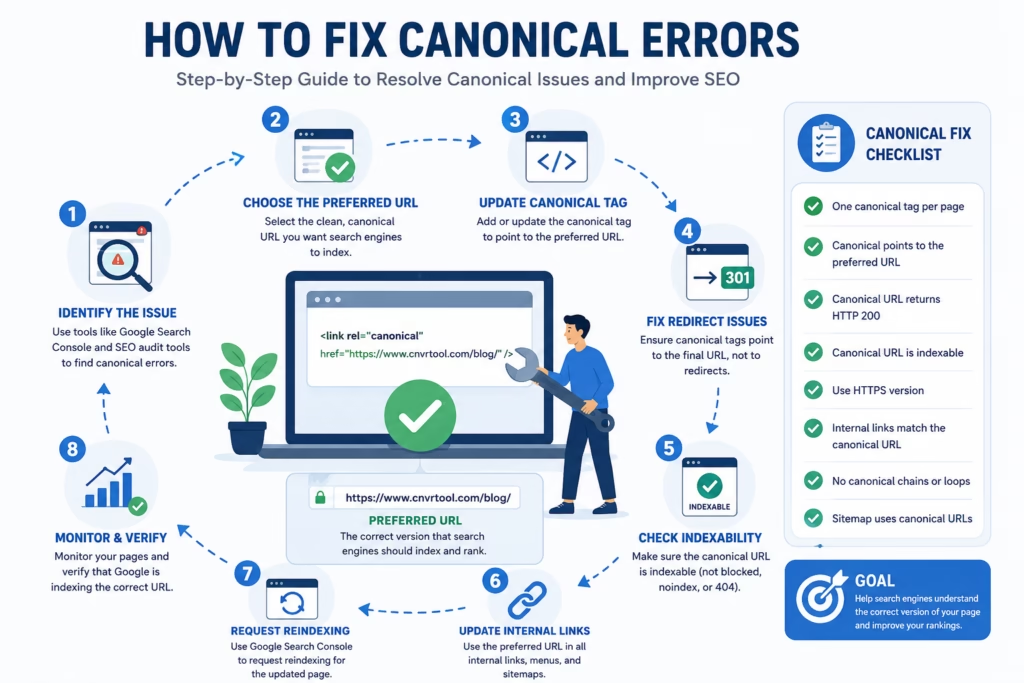
Finding a canonical error is only half the battle. The next step is fixing it correctly so Google can understand which version of your page should appear in search results.
The good news is that most canonical errors can be fixed without advanced technical knowledge. Whether you run a blog, business website, or tool-based platform like CNVRTool, the process is usually the same: identify the problem, choose the correct URL, and send clear signals to search engines.
Think of it like correcting a wrong address on a package. If the address is incomplete or incorrect, the package may never reach its destination. Similarly, if your canonical tag points to the wrong URL, Google may struggle to understand which page deserves rankings and traffic.
Let’s go through the process step by step.
Step 1: Identify Pages with Canonical Errors
Before making any changes, you need to know which pages have problems.
The easiest way is to use Google Search Console.
Navigate to:
Google Search Console → Indexing → Pages
Look for warnings such as:
- Duplicate without user-selected canonical
- Alternate page with proper canonical tag
- Duplicate, Google chose different canonical than user
- Excluded by noindex tag
These reports help identify pages where Google disagrees with your canonical instructions.
You can also use SEO tools such as:
- Screaming Frog
- Semrush Site Audit
- Ahrefs Site Audit
- Sitebulb
These tools scan your entire website and highlight canonical issues automatically.
For example, a site audit might reveal that:
https://www.cnvrtool.com/blog/
contains a canonical tag pointing to a URL that no longer exists.
Once you know which pages are affected, you can move to the next step.
Step 2: Determine the Preferred URL
After identifying duplicate pages, decide which version should be considered the main URL.
For example, imagine these URLs all display the same content:
https://www.cnvrtool.com/blog/
https://cnvrtool.com/blog/
https://www.cnvrtool.com/blog/?utm_source=facebook
https://www.cnvrtool.com/blog/?utm_source=email
Although visitors see the same page, Google may see four different URLs.
Ask yourself:
- Which URL is cleanest?
- Which URL appears in your sitemap?
- Which URL receives backlinks?
- Which URL do you want users to share?
In most cases, the preferred version should be:
https://www.cnvrtool.com/blog/
Once you’ve chosen the preferred URL, use it consistently throughout your website.
Step 3: Update the Canonical Tag
Now it’s time to correct the canonical tag.
If your preferred page is:
https://www.cnvrtool.com/blog/
then your canonical tag should be:
<link rel="canonical" href="https://www.cnvrtool.com/blog/" />
This tells search engines:
“This is the original version of the page. Please consolidate ranking signals here.”
If you’re using WordPress with Rank Math or Yoast SEO, canonical tags are usually generated automatically. However, you should still verify that they point to the correct URL.
After updating the tag, check the page source to confirm the change was applied successfully.
Step 4: Fix Redirect-Related Canonical Issues
A common mistake is pointing a canonical tag to a URL that redirects elsewhere.
For example:
https://cnvrtool.com/blog/
redirects to:
https://www.cnvrtool.com/blog/
If your canonical tag points to the first URL, Google must process both the canonical and the redirect.
This creates unnecessary complexity.
Instead of this:
<link rel="canonical" href="https://cnvrtool.com/blog/" />
Use:
<link rel="canonical" href="https://www.cnvrtool.com/blog/" />
Always point canonicals directly to the final destination URL.
Step 5: Fix HTTP and HTTPS Conflicts
Many websites migrate from HTTP to HTTPS but forget to update their canonical tags.
For example:
The page loads at:
https://www.cnvrtool.com/blog/
But the canonical says:
https://www.cnvrtool.com/blog/
This creates confusion because Google sees two versions of the same page.
To fix this issue:
- Use HTTPS URLs everywhere.
- Update all canonical tags.
- Update internal links.
- Update your XML sitemap.
Consistency is critical.
Step 6: Remove Canonical Chains and Loops
Canonical chains occur when one canonical points to another canonical.
Example:
Page A → Canonical to Page B
Page B → Canonical to Page C
Google must follow multiple steps before reaching the preferred URL.
Canonical loops are even worse.
Example:
Page A → Canonical to Page B
Page B → Canonical to Page A
Google cannot determine which page should be treated as primary.
To fix these issues:
- Choose one final URL.
- Point all duplicate pages directly to that URL.
- Avoid unnecessary intermediate pages.
This keeps your canonical structure simple and easy for search engines to understand.
Step 7: Fix Multiple Canonical Tags
Every page should have only one canonical tag.
If your page source contains:
<link rel="canonical" href="https://www.cnvrtool.com/blog/" />
<link rel="canonical" href="https://www.cnvrtool.com/category/blog/" />
Google receives conflicting instructions.
To fix this:
- View your page source.
- Search for “canonical”.
- Remove duplicate tags.
- Keep only the correct canonical URL.
This problem often occurs when multiple SEO plugins are installed simultaneously.
Step 8: Ensure Canonical Pages Are Indexable
Your canonical destination should always be indexable.
Avoid situations where the canonical page:
- Returns a 404 error
- Has a noindex tag
- Is blocked by robots.txt
- Redirects elsewhere
A canonical tag should point to a page that:
- Loads successfully
- Returns HTTP 200 status
- Can be crawled
- Can be indexed
Otherwise, Google may ignore your canonical instructions.
Step 9: Update Internal Links
Even with correct canonical tags, inconsistent internal links can send mixed signals.
For example:
Some pages link to:
https://cnvrtool.com/blog/
Others link to:
https://www.cnvrtool.com/blog/
Google may interpret these as different URLs.
To strengthen canonical signals:
- Use the preferred URL in all internal links.
- Use the same version in menus.
- Use the same version in breadcrumbs.
- Use the same version in related posts.
Consistency helps search engines understand your preferred URL.
Step 10: Request Reindexing in Google Search Console
After fixing canonical issues, you should encourage Google to reprocess the page.
Open Google Search Console.
Enter the corrected URL into the URL Inspection Tool.
Then click:
Request Indexing
This doesn’t guarantee immediate changes, but it alerts Google that the page has been updated.
Depending on your website’s crawl frequency, Google may process the changes within a few days or several weeks.
Final Canonical Fix Checklist
Before finishing, verify the following:
| Check | Status |
|---|---|
| Only one canonical tag exists | ✓ |
| Canonical points to preferred URL | ✓ |
| Canonical URL returns HTTP 200 | ✓ |
| Canonical URL is indexable | ✓ |
| HTTPS version is used | ✓ |
| Internal links match canonical URL | ✓ |
| No canonical chains exist | ✓ |
| No canonical loops exist | ✓ |
| XML sitemap uses canonical URLs | ✓ |
If every item on this checklist is correct, your canonical setup will be much clearer to Google, reducing duplicate content issues and helping search engines understand which pages deserve rankings.
Canonical Tag vs 301 Redirect
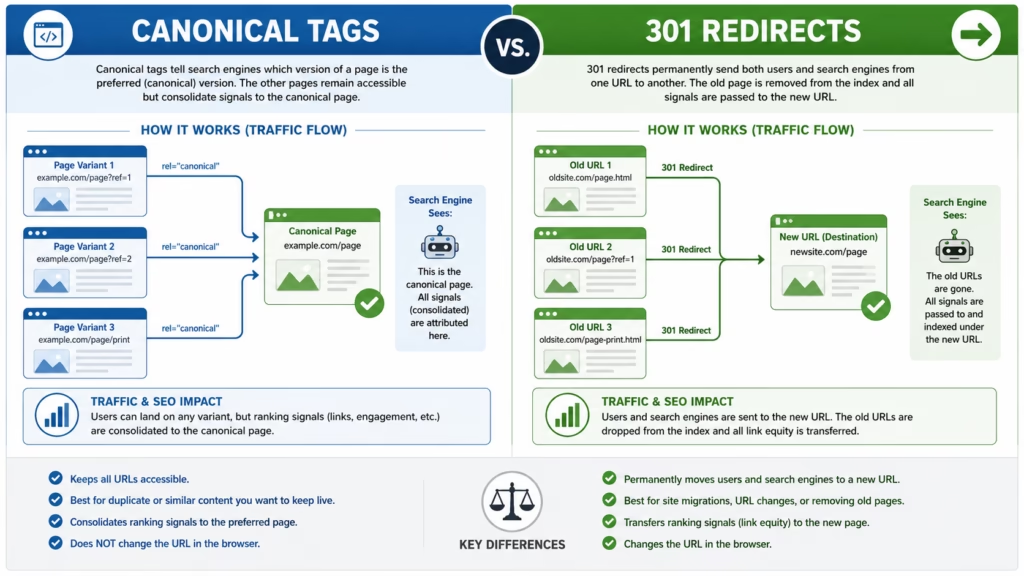
Many beginners confuse these two SEO tools.
Although they seem similar, they serve different purposes.
| Feature | Canonical Tag | 301 Redirect |
|---|---|---|
| Users stay on original URL | Yes | No |
| URL changes in browser | No | Yes |
| Duplicate page remains accessible | Yes | No |
| Best for duplicate content | Yes | Sometimes |
| Best for deleted pages | No | Yes |
Use a canonical tag when multiple versions of a page must remain available.
Use a 301 redirect when one URL should permanently replace another.
Canonical Errors in WordPress
WordPress websites often experience canonical issues because of:
- SEO plugins
- WooCommerce filters
- Category archives
- Tag archives
- Pagination settings
If you’re using Rank Math or Yoast SEO, regularly inspect your page source to confirm that only one canonical tag is present.
For eCommerce websites, filter URLs often create thousands of duplicate pages.
Proper canonicalization is essential to prevent indexing problems.
Best Practices for Canonical Tags
Follow these SEO best practices:
- Use self-referencing canonical tags.
- Always use HTTPS URLs.
- Avoid canonical chains.
- Avoid canonical loops.
- Keep internal links consistent.
- Use one canonical tag per page.
- Audit your site regularly.
- Align sitemap URLs with canonical URLs.
These simple practices can prevent most canonical issues before they affect rankings.
Read More: What Is the Best Way to Recover Rankings After the Google Core Update on 2026?
Conclusion
A canonical error happens when Google receives unclear or incorrect instructions about which version of a page should be considered the original.
Although canonical tags are small pieces of code, they play a major role in SEO. They help search engines understand your website structure, avoid duplicate content problems, and consolidate ranking signals into a single URL.
If your site has indexing issues, duplicate pages, or unexplained ranking drops, reviewing your canonical setup should be one of the first steps in your SEO audit. A properly implemented canonical strategy helps Google crawl, understand, and rank your content more effectively.
Frequently Asked Questions
What is the easiest way to check a canonical tag?
Open the page source and search for “canonical.” You will see the canonical URL specified in the HTML code.
Can a canonical error cause traffic loss?
Yes. If Google indexes the wrong URL or splits ranking signals across multiple URLs, organic traffic can decline.
Should every page have a canonical tag?
In most cases, yes. A self-referencing canonical tag helps search engines understand the preferred version of a page.
Can Google ignore canonical tags?
Yes. Canonical tags are treated as strong hints, not absolute commands. Google may choose a different canonical if it believes another URL is more appropriate.
How often should I audit canonical tags?
For active websites, checking canonical tags during monthly SEO audits is a good practice.