
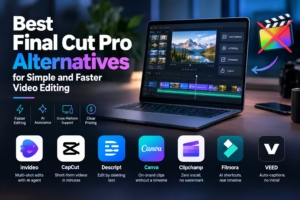
A Final Cut Pro alternative built for speed is video editing software that gets a raw clip to a finished export with fewer steps, not more features. Final Cut Pro is a capable, Mac-only professional editor, but its magnetic timeline, trackless layout, and full effects library ask for a real time investment before a first video ships. For anyone who mainly needs to cut, caption, and export quickly, across Mac, Windows, mobile, or the browser, a simpler tool usually finishes the job faster. This guide compares seven alternatives on editing speed, AI assistance, platform reach, and pricing clarity.
Quick Summary
- invideo — An AI agent that cuts repetitive editing time on a real timeline (Fastest Way to Finish a Multi-Shot Edit)
- CapCut — Templates and effects built for a finished clip in minutes (Fastest for Short-Form Social Video)
- Descript — Delete a sentence in the transcript, the video cuts itself (Fastest for Talking-Head and Podcast Video)
- Canva — Brand assets and video templates in one place (Fastest for On-Brand Marketing Clips)
- Clipchamp — Already installed, free, no watermark (Fastest Zero-Setup Option)
- Filmora — AI shortcuts layered onto a simplified timeline (Fastest Way to Learn Real Editing)
- VEED — Auto-captions and export, entirely in the browser (Fastest for Captioned Social Clips)
How We Evaluated These Final Cut Pro Alternatives
Speed is the point of this list, so each tool was judged on four criteria: time to first export (how many steps sit between opening the app and a finished video); AI assistance (does it remove manual work like captioning, trimming, or color-matching, rather than just offering a filter); platform reach (does it work beyond Mac, since Final Cut Pro doesn’t); and pricing clarity (is the real cost obvious, or buried in credits and regional variation).
| Tool | Best for | Key feature | Starting price |
| invideo | Multi-shot edits without repeating the same manual change on every clip | Free timeline editor plus a conversational AI editing agent | Free manual editing; paid tiers from $17/month billed annually |
| CapCut | Short-form video finished in minutes | Templates, auto-captions, and trending effects across mobile, desktop, and browser | Free; Pro from about $9.99/month billed annually |
| Descript | Talking-head video edited by deleting text | Text-based editing, Studio Sound, Overdub voice cloning | Free; Creator plan from $24/user/month billed annually |
| Canva | On-brand marketing clips without a timeline | Drag-and-drop video templates with Magic Studio AI | $144/year (about $12/month) for Pro |
| Clipchamp | Zero-install editing already on Windows | Free 1080p export, no watermark, bundled with Windows 11 | Free; Premium $11.99/month standalone |
| Filmora | A simplified timeline with AI doing the repetitive work | AI Copilot editing, auto captions, smart masking | From about $19.99/month, or roughly $70/year |
| VEED | Fast captioned clips with no software to install | Auto-subtitles, AI avatars, 50+ language translation | Free; Creator plan from $12/month billed annually |
invideo — Finish a Multi-Shot Edit Without Repeating the Same Change on Every Clip
invideo runs in the browser rather than tying you to one operating system, and pairs a free timeline editor with Agent Two, an AI agent that can apply one instruction across every shot at once instead of making you repeat a trim, color match, or caption style clip by clip. That single difference is usually where speed is won or lost on a multi-clip project: Final Cut Pro’s compound clips and batch tools can do similar work, but only after you’ve learned them.
It also opens that project to outside help: invideo supports letting you edit videos using AI agents such as Claude, ChatGPT, Claude Code, Codex, and Cursor, which connect over MCP and work on the same browser timeline you’re watching, each with its own cursor alongside yours.
The agent also logs every clip it sees in memory, so finding a specific moment is a matter of describing it rather than scrubbing the timeline, which saves real time on longer footage.
Best for: Anyone editing more than a couple of clips who wants one instruction to apply everywhere, instead of repeating it by hand.
Where it falls short: The agent’s generation and batch-editing features run on credits, so very heavy use needs a paid plan rather than staying entirely free.
Pricing: Manual editing is free; paid plans start at $17/month billed annually.
CapCut — A Finished Short-Form Clip in Minutes
CapCut’s entire design is built around speed: templates handle pacing and transitions automatically, auto-captions generate in one tap, and trending effects are one search away rather than something you’d build from scratch. It’s available on mobile, desktop, and browser, so a clip started on a phone can be finished anywhere.
That speed comes from leaning on templates rather than manual control, which is the opposite trade-off from Final Cut Pro’s deep, click-everything-yourself timeline.
Best for: TikTok, Reels, and YouTube Shorts where finishing fast matters more than frame-level control.
Where it falls short: Pro pricing has shifted over time and varies by region, and heavier editing control than templates allow isn’t really CapCut’s strength.
Pricing: Free tier available; Pro runs roughly $9.99/month billed annually (around $19.99/month billed monthly), with pricing varying by region.
Descript — Delete a Sentence, the Video Cuts Itself
Descript transcribes whatever you upload and turns that transcript into the editing surface: delete a sentence in the text and the matching audio or video disappears with it. For talking-head content — podcasts, interviews, tutorials — this is routinely faster than scrubbing a timeline looking for the exact frame to cut, which is exactly the kind of work Final Cut Pro’s timeline makes you do by hand.
Studio Sound cleans up room noise automatically, and Overdub can fix a flubbed line by cloning the speaker’s voice rather than requiring a re-record, both of which save time beyond the core edit.
Best for: Podcasters, YouTubers, and course creators editing primarily spoken-word video.
Where it falls short: Since a 2025 pricing overhaul, usage is metered in media minutes and AI credits, which several reviewers note makes the real monthly cost less predictable than the plan price suggests.
Pricing: Free plan available; Creator is $24 to $35/user/month depending on billing cycle, Business is $50 to $65/user/month.
Canva — On-Brand Clips Without Opening a Timeline
Canva’s speed advantage comes from treating video as one more design surface: brand colors, fonts, and logos already saved in your account apply automatically, and Magic Studio’s background removal, beat-synced cuts, and short AI clips sit in the same editor used for every other asset a team produces. There’s rarely a timeline to build from scratch at all.
That convenience trades off against depth — Canva’s video tools are built for short, templated output, not the kind of layered, frame-accurate work Final Cut Pro is designed for.
Best for: Marketing and social teams who want a finished, on-brand video without leaving their design workflow.
Where it falls short: Limited manual timeline control, and AI features draw from a single shared credit pool used by every Canva tool, not just video.
Pricing: Free plan available; Pro is $144/year (about $12/month).
Clipchamp — Nothing to Install, Nothing to Buy
The fastest step in any edit is the one you don’t have to take, and Clipchamp removes the install step entirely: it’s bundled free into Windows 11 and Microsoft 365, running in the browser with no download. The free plan exports at 1080p with no watermark, so there’s no forced upgrade just to get a usable file out the door.
Premium, at $11.99/month standalone, adds 4K export and a larger stock library, and comes included for anyone already paying for Microsoft 365 Personal or Family.
Best for: Windows and Microsoft 365 users who want to start editing immediately with zero setup.
Where it falls short: The AI and stock-media feature set is lighter than purpose-built competitors, and it’s tied to the Microsoft ecosystem.
Pricing: Free (1080p, no watermark); Premium is 11.99/monthstandalone,includedwithMicrosoft365Personal(9.99/month) or Family ($12.99/month).
Filmora — AI Doing the Repetitive Work on a Simplified Timeline
Filmora keeps a real timeline — keyframes, HSL color, stabilization — but wraps the slow parts in AI shortcuts: AI Copilot editing, automatic thumbnail generation, and smart masking all exist specifically to cut steps out of jobs that take much longer manually in Final Cut Pro. It’s a genuine timeline editor made to move faster than a professional one.
There’s no permanent free tier for watermark-free export, and pricing is split across monthly, annual, and one-time perpetual licenses that vary by platform.
Best for: Editors who want a real timeline without Final Cut Pro’s full learning investment.
Where it falls short: No watermark-free free tier, and premium stock assets add to the cost on top of the base plan.
Pricing: From about $19.99/month, or roughly $70/year on the annual plan; a one-time perpetual license is also available, priced separately by platform.
VEED — Auto-Captions and Export, Entirely in the Browser
VEED runs in the browser with no install, and its speed case rests almost entirely on captions: auto-subtitles generate fast and accurately enough to skip manually timing text, which is one of the slower steps in any caption-heavy edit. AI avatars and translation into 50+ languages extend that same speed to multi-language versions of a clip.
All of VEED’s AI features draw from a monthly credit pool, and the features most people actually want — higher resolution, translation, brand kits — sit behind the $22/month tier rather than the $12 entry price.
Best for: Caption-heavy, multi-language short-form video with no software to install.
Where it falls short: The $12/month entry tier is missing features most users need, and credit limits can force a mid-cycle upgrade.
Pricing: Free plan with watermark; Creator is $12/month billed annually, Studio Pro is $22/month.
Which Final Cut Pro Alternative Should You Use
- Editing several clips and don’t want to repeat the same change on each one → invideo
- Need a finished short-form clip in minutes → CapCut
- Editing talking-head podcasts, interviews, or tutorials → Descript
- Want an on-brand marketing clip without building a timeline → Canva
- Want zero install and already use Windows or Microsoft 365 → Clipchamp
- Want a real timeline that moves faster than a professional one → Filmora
- Need fast, multi-language captions with no software to install → VEED
FAQ
What’s the fastest alternative to Final Cut Pro for quick edits? For short-form social clips, CapCut is built almost entirely around speed via templates. For editing several clips without repeating the same manual change, invideo’s AI agent saves more time the longer and more complex the project gets.
Is there a Final Cut Pro alternative that works on Windows, not just Mac? Yes — all seven tools in this guide run on Windows, since Final Cut Pro is Mac-only. Clipchamp in particular is built into Windows 11 itself, and invideo, Canva, and VEED run in any browser regardless of operating system.
Can editing by transcript really be faster than a timeline? For spoken-word content, generally yes. Deleting a sentence in Descript’s transcript view cuts the matching video automatically, which is usually faster than scrubbing a timeline to find and trim the exact frame by hand.
Do I need to learn a whole new interface to edit faster than Final Cut Pro? Not necessarily. Clipchamp, CapCut, and Canva are all built to need almost no learning curve. Filmora and invideo keep a real timeline but add AI shortcuts specifically to cut down the manual steps a timeline normally requires.
Will an AI agent make editing decisions I don’t want? invideo’s Agent Two applies instructions you give it across a timeline, and the result lands back in an editable project, so you can adjust or undo anything it did. It speeds up repetitive work; it doesn’t lock in choices you can’t change.