
Picking your first video editing software shouldn’t feel like studying for an exam, but a lot of “beginner” software still buries you in panels, codecs, and keyboard shortcuts before you’ve cut a single clip. That’s a real problem right now. A 2026 Sprout Social report found that 91% of businesses are actively using video as part of their marketing, and short-form video has become the most-used content format among marketers overall, according to HubSpot’s 2026 State of Marketing data. More people are being asked to edit video than ever before, and most of them have never opened an editing timeline in their life.
This list focuses on tools that actually respect that reality: simple enough to open and start cutting within minutes, but capable enough that you won’t outgrow them the moment you get comfortable. We tested each one against the same criteria, so you’re comparing like for like, and by the end you’ll know exactly which one fits your situation, whether that’s a quick social clip, a YouTube video, or your very first long-form project.
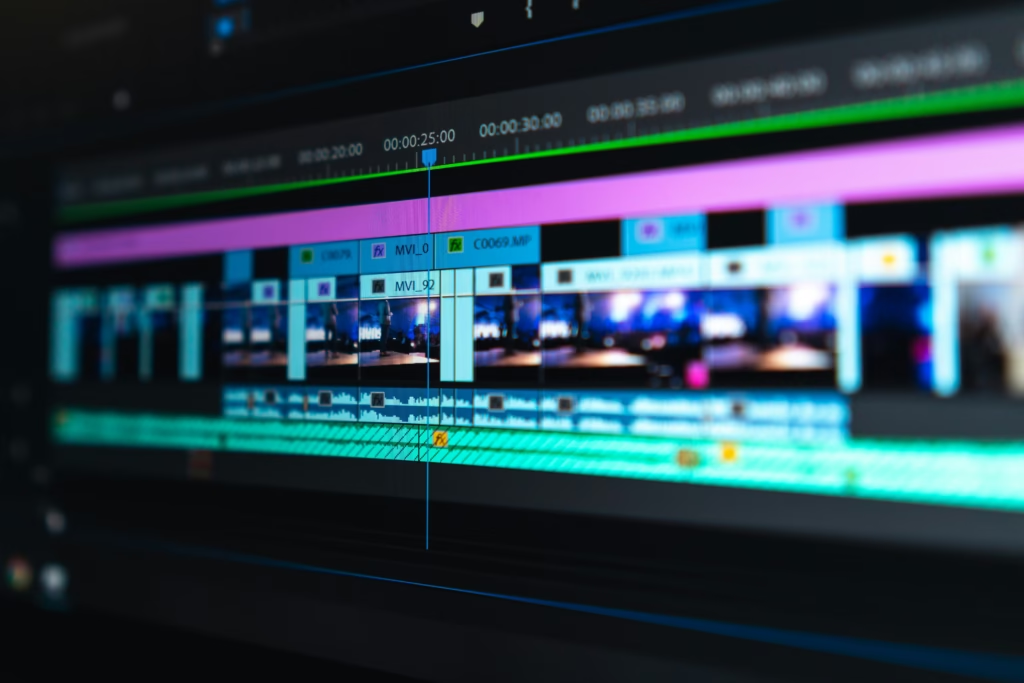 Image source
How We Picked These
A “beginner” tool isn’t just a simplified one. It needs to get out of your way while still handling the basics well. We looked for:
- A genuinely usable free tier or low-cost entry point, not a trial that expires in a week
- A short path from opening the app to exporting your first video
- Auto-captions, templates, or AI assistance that reduce manual work
- Browser or mobile access, since not every beginner wants to install desktop software
- Enough room to grow into, so you don’t need to switch tools after your first month
The 10 Best Beginner video editing software in 2026
Here’s how the ten compare at a glance, before we break each one down individually below.
| # | Software | Best For | Platform | Free Plan | Standout Feature |
| 1 | Invideo Editor | AI-assisted assembly from raw footage | Browser | Yes, watermarked; paid from $20/seat/mo | AI agents build your first cut and handle reframing, B-roll, and cleanup |
| 2 | CapCut | Short-form social clips | Mobile, desktop, web | Yes | Trending templates and auto-captions |
| 3 | Clipchamp | Windows users | Browser, built into Windows 11 | Yes | Zero-install, native OS integration |
| 4 | Canva Video Editor | Template-driven marketing videos | Browser, mobile | Yes | Direct access to your Canva brand kit |
| 5 | VEED | Subtitle-heavy content | Browser | Yes, watermarked | Strong auto-subtitles and translation |
| 6 | Kapwing | Team collaboration | Browser | Yes, watermarked | Real-time, multi-editor collaboration |
| 7 | Wondershare Filmora | Traditional timeline editing | Windows, Mac, mobile | Free trial | Large effects and preset library |
| 8 | Movavi Video Editor | Simple linear edits | Windows, Mac | Free trial | Minimal interface built for beginners |
| 9 | InShot | Phone-only editing | iOS, Android | Yes, watermarked | Fast trimming, music, and filters |
| 10 | Adobe Express Video Editor | Future Premiere Pro users | Browser, mobile | Yes | Backed by Adobe’s asset library |
1. Invideo Editor
Invideo Editor is a free, browser-based video editor built around AI editing agents you assign real editing work to, rather than a one-prompt generator or a fixed template tool. You upload raw footage, describe what you want in plain language, and the agent reviews it, selects the best takes, removes mistakes and dead air, and assembles an editable base cut for you, directly on a real multitrack timeline. Beyond basic assembly, agents can reframe a video from 16:9 to 9:16 while keeping the subject in frame, generate missing B-roll from AI models or stock footage, swap out a background without manual masking, generate sound design, and search through hours of footage using plain descriptions like “show me the scenes with the man in the blue jacket.” You can also edit directly from a transcript, the way you’d edit a shared document, or type a command to change something on the timeline instantly.
- Platform: Browser only, no install required
- Free plan: The full editor and timeline are free to use with no credit card, though free exports carry a watermark and weekly limits; paid seat plans start at $20/month and remove both
- Standout feature: An AI agent that turns raw footage into a working first cut, then keeps refining it through natural-language instructions while you stay in control of the timeline
- Where it falls short: Not built for high-end VFX compositing or highly specialized motion graphics, and some AI-generated transitions still need a manual touch-up afterward
2. CapCut
CapCut is the most widely used short-form video editor in the world, built for fast, template-driven editing across mobile, desktop, and web. It’s the default choice for a huge share of TikTok, Reels, and Shorts creators because it gets you from raw clip to finished post in a handful of taps: trim the footage, drop in a trending effect, add auto-generated captions, and export straight into the right aspect ratio for whichever platform you’re posting to.
- Platform: iOS, Android, Windows, Mac, and web
- Free plan: Yes, generous enough for casual use, with an optional Pro subscription unlocking premium templates, effects, and stock assets
- Standout feature: An enormous, constantly refreshed library of trending templates paired with reliable, fast auto-captioning
- Where it falls short: The desktop version is noticeably less intuitive than the mobile app, and larger projects can feel sluggish compared to editors built desktop-first
3. Clipchamp
Clipchamp is Microsoft’s built-in browser editor, bundled directly with Windows 11, which makes it one of the lowest-friction starting points if you’re already working on a Windows machine. It covers the fundamentals well: trimming clips, layering text, adding stock footage and music, and applying simple templates, all through drag-and-drop, without asking you to learn much beyond what you’d expect from a basic office app.
- Platform: Browser, built into Windows 11, also works on Mac and other browsers via the web
- Free plan: Yes, with a Microsoft 365 subscription unlocking additional premium stock, templates, and higher export resolutions
- Standout feature: Zero-install simplicity, since it’s often already sitting on your computer if you’re on Windows
- Where it falls short: Its effects and transitions library is noticeably thinner than most other tools on this list, and it isn’t really built for longer or more complex edits
4. Canva Video Editor
Canva’s video editor extends the design tool millions of people already use for graphics into video, which makes it an unusually easy pick if you or your team already builds slides, social posts, or presentations there. Editing follows the same drag-and-drop logic as Canva’s other tools, and every video project can pull directly from your existing brand kit, fonts, and templates, so marketing videos stay visually consistent with everything else you produce.
- Platform: Browser and mobile app
- Free plan: Yes, with Canva Pro unlocking premium video assets, stock footage, and background removal
- Standout feature: Direct access to your existing Canva brand kit, so a video project never feels disconnected from your other design work
- Where it falls short: It’s strongest for short, template-driven content; longer or more narrative-heavy edits quickly outgrow what the tool is built for
5. VEED
VEED is a browser-based editor built specifically around fast, accurate auto-subtitles, which makes it a favorite for podcast clips, interview cutdowns, and tutorial content where captions matter as much as the visuals. Upload a talking-head video and VEED will transcribe it, generate synced subtitles automatically, and let you translate them into other languages without having to manually re-time a single word.
- Platform: Browser only
- Free plan: Yes, with a watermark and limited export minutes; paid plans remove the watermark and extend export limits
- Standout feature: Auto-subtitle and auto-translation tools that hold up well across accents and multiple speakers
- Where it falls short: Outside of subtitle-heavy content, its manual editing toolset is comparatively basic next to more general-purpose editors on this list
6. Kapwing
Kapwing is a browser-based editor built around real-time collaboration, which makes it a solid pick for small teams or agencies editing the same project without emailing files back and forth all day. Multiple people can open and work on one project simultaneously, closer to editing a shared document together than passing a single file around between editors.
- Platform: Browser only
- Free plan: Yes, with a watermark on exports; paid plans remove it and add longer export lengths
- Standout feature: Real-time, multi-editor collaboration inside a single shared project
- Where it falls short: Performance can lag on longer or more complex timelines, and its free tier’s export limits are tighter than some competitors on this list
7. Wondershare Filmora
Filmora is a desktop editor that looks and feels closer to traditional editing software than most tools on this list, with a proper multitrack timeline, but it keeps that complexity approachable for first-time users through guided presets and a large built-in effects library. It’s a reasonable middle ground for someone who wants to build real editing habits without starting on something as steep as Premiere Pro on day one.
- Platform: Windows, Mac, and a mobile app
- Free plan: Free trial with a watermark; a one-time or subscription license removes it and unlocks the full effects library
- Standout feature: A large library of transitions, effects, and color presets without a steep learning curve
- Where it falls short: The free trial is watermarked rather than genuinely usable long-term, and its AI-assisted features are more limited than newer agent-based tools
8. Movavi Video Editor
Movavi is a lightweight desktop editor built around a simple, linear timeline, aimed squarely at people who’ve never opened editing software before. It won’t overwhelm you with panels or settings, and it covers trimming, transitions, titles, and basic color correction without much of a learning curve to get through first.
- Platform: Windows and Mac
- Free plan: Free trial with a watermark and limited export length; a one-time paid license unlocks full export
- Standout feature: A minimal, uncluttered interface that prioritizes not overwhelming a first-time user
- Where it falls short: Its effects and AI-assisted features feel dated compared to newer browser-based or agent-based competitors on this list
9. InShot
InShot remains one of the most downloaded mobile editing apps for a reason: it’s fast, simple, and covers everything most people need for a phone-only edit, trimming, music, filters, speed changes, and aspect ratio conversion, all without ever opening a desktop app.
- Platform: iOS and Android
- Free plan: Yes, with a watermark and ads; InShot Pro removes both and adds more effects
- Standout feature: Fast, one-handed mobile editing tools built specifically for social content
- Where it falls short: There’s no real desktop equivalent, so it doesn’t scale well once your projects grow beyond simple phone-shot clips
10. Adobe Express Video Editor
Adobe Express is Adobe’s simplified, template-driven entry point into video editing, a far gentler on-ramp than Premiere Pro while still being backed by Adobe’s broader ecosystem of stock assets and fonts. It’s a sensible starting place if you think you might eventually want to move into Adobe’s more advanced tools later, since the underlying account and asset library carry over when you do.
- Platform: Browser and mobile
- Free plan: Yes, with Adobe Express Premium unlocking additional templates and premium stock assets
- Standout feature: Backed by Adobe’s asset library, with a natural upgrade path into Premiere Pro if you outgrow it
- Where it falls short: It’s a simplified tool by design, so it lacks the manual depth (keyframing, advanced color, multitrack audio) of full editing software
Which One Should You Use?
- Want an AI agent to build your first cut from raw footage → Invideo Editor
- Editing fast for TikTok, Reels, or Shorts → CapCut
- Already on Windows and want zero install → Clipchamp
- Already live inside Canva for design work → Canva Video Editor
- Editing podcast clips or interviews with heavy captions → VEED
- Need a team to edit the same project together → Kapwing
- Want a traditional timeline feel without the steep learning curve → Wondershare Filmora
- Want the simplest possible desktop app → Movavi Video Editor
- Editing entirely from your phone → InShot
- Might want to graduate into Premiere Pro eventually → Adobe Express Video Editor
Key Takeaways
- Beginner-friendly doesn’t have to mean limited. Invideo Editor and Filmora both pair a simple starting experience with real depth once you need it.
- Browser-based tools (Invideo Editor, Clipchamp, VEED, Kapwing, Adobe Express) remove the install step entirely, useful if you just want to try editing before committing to anything.
- Mobile-first tools like CapCut and InShot are still the fastest path for pure short-form social content.
- AI-assisted assembly, where software helps review and structure your footage instead of just applying filters, is becoming a real differentiator rather than a marketing term. Invideo Editor’s agents now also handle reframing, background swaps, and footage search, not just cutting.
- Free tiers almost always come with a trade-off, usually a watermark or an export limit, so check exactly what “free” unlocks before you commit a real project to any single tool.
- The right pick depends more on your platform (phone, browser, or desktop) and content type (social clips vs. long-form) than on any single “best overall” answer.
Read More: Video Marketing Creation Services
FAQs
- What’s the easiest video editor for a complete beginner?
For phone-only editing, InShot or CapCut are the fastest to pick up. For editing on a computer without installing anything, Invideo Editor or Clipchamp get you from raw footage to a finished export with the least manual work.
- Do I need to pay for a good beginner video editor?
No. Most tools on this list, including Invideo Editor, CapCut, Clipchamp, and Adobe Express, offer a genuinely usable free tier. Invideo Editor’s free plan includes the full editor and timeline with no credit card, though exports carry a watermark and weekly limits until you upgrade to a paid seat starting at $20 a month.
- Is browser-based editing good enough for real projects?
Yes, for the vast majority of beginner and intermediate projects. Browser tools have closed most of the gap with desktop software for cutting, color, and audio, though very specialized VFX work still tends to live in dedicated desktop applications.
- What should I actually look for as a first-time editor?
Prioritize a short learning curve over a long feature list. Auto-captions, templates, and AI-assisted first-cut features will save you far more time early on than advanced tools you won’t touch for months.
- Can I move to more advanced software later if I start with a simple tool?
Generally, yes. The core skills, cutting, pacing, audio balance, transfer directly. Tools like Invideo Editor and Filmora already use a real timeline similar to professional software, so the jump later is smaller than starting on a purely template-based app.
- What’s the actual difference between a template editor and an AI agent editor?
A template tool applies one fixed recipe to whatever you upload, captions on, effects added, done. An agent editor like Invideo Editor reads your actual footage, makes editorial decisions based on your instructions, and hands you an editable timeline rather than a locked, one-size-fits-all output.
- Which of these tools works best for a team, not just a solo creator?
Kapwing and Invideo Editor both support multiple people working on the same project at once, which matters if more than one person needs to touch the edit before it ships.
Conclusion
The best beginner video editor isn’t necessarily the one with the most features. It’s the one that gets you from raw footage to a finished video without losing an afternoon to the learning curve. With free, capable options like Invideo Editor now handling the tedious assembly work, reframing, and footage search for you, the real question isn’t whether you can learn to edit. It’s what you’ll actually make once that barrier is gone.
Author : Steve Smith is a technology and digital content writer who covers practical software, online tools, and emerging technologies. He focuses on creating clear, useful guides that help beginners and everyday users understand software, choose the right tools, and get more from their digital workflow. Steve’s work combines hands-on research with straightforward explanations, making complex technology easier to understand and use.