
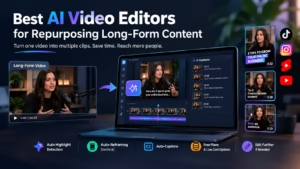
Every podcast episode, webinar, or long-form YouTube video you publish is really several pieces of content hiding inside one file. The catch is finding them. A 2026 Sprout Social report found that 91% of businesses are now actively using video in their marketing, and HubSpot’s 2026 State of Marketing data shows short-form video has become the most-used content format among marketers overall. That means the same hour-long interview you recorded once now needs to become a handful of short, platform-native clips, and doing that manually, scrubbing through footage looking for the fifteen good seconds, is exactly the kind of repetitive work AI has actually gotten good at.
This list covers tools built specifically for that job: turning long recordings into short, publishable clips with minimal manual searching. Some are dedicated clipping tools, others are full editors that happen to do this well too, and by the end you’ll know which type actually fits how you work.
How We Picked These
Repurposing tools live or die on a few specific things, so we looked for:
- Automatic highlight or moment detection, not just manual trimming
- Auto-reframing for vertical formats (TikTok, Reels, Shorts) without you doing it by hand
- Auto-captions, since most social video gets watched with the sound off
- A genuinely usable free tier or low-cost entry point
- Whether the output is a locked clip or something you can still edit further
Comparison at a Glance
| # | Software | Best For | Platform | Free Plan | Standout Feature |
| 1 | Invideo Editor | Repurposing with a real editable timeline | Browser | Yes, watermarked; paid from $20/mo | Agent-driven reframing and cutdowns you can still edit |
| 2 | OpusClip | Dedicated long-to-short clipping | Browser | Yes, watermarked | Virality scoring on every clip |
| 3 | Submagic | Making clips look native to TikTok/Reels | Browser | No permanent free tier | Auto B-roll insertion from transcript keywords |
| 4 | Descript | Editing a long recording like a document | Desktop, browser | Yes, ~60 min/mo | Underlord agentic AI co-editor |
| 5 | Wisecut | Automatic music and audio ducking | Browser | Yes | Smart background music synced to speech |
| 6 | Gling | Cleaning up long talking-head footage | Desktop | Yes, 1 hr/mo | Direct XML export to Premiere/FCP/Resolve |
| 7 | Munch | Multi-platform clip distribution | Browser | Limited free trial | Auto captions, hashtags, and formatting per platform |
| 8 | Vidyo.ai | Getting multiple clip options per moment | Browser | Limited free tier | Several distinct clip variants per highlight |
| 9 | Kapwing | Combining manual editing with auto-clipping | Browser | Yes, watermarked | Repurposing tools inside a full collaborative editor |
The 9 Best AI Video Editors for Repurposing Long-Form Content
1. Invideo Editor
Invideo’s AI video editor approaches repurposing differently from most tools on this list. It’s a free, browser-based video editor built around AI editing agents, so instead of a single-purpose “long video in, short clips out” pipeline, you get a full timeline editor where an agent can search your footage by plain description, reframe a video from 16:9 to 9:16 while keeping the subject in frame, and cut a long edit down into shorter, platform-specific versions on request.
- Platform: Browser only, no install required
- Free plan: The full editor and timeline are free with no credit card, though free exports carry a watermark and weekly limits; paid seat plans start at $20/month and remove both
- Standout feature: Combines automated reframing and cutdowns with a real, still-editable timeline, so the clip it produces is a starting point, not a locked final answer
- Where it falls short: It isn’t built around one single “upload a podcast, get ten viral clips” pipeline the way dedicated repurposing tools are, so it takes a bit more direction to get there
2. OpusClip
OpusClip is the best-known dedicated repurposing tool, built specifically to turn long recordings, podcasts, webinars, interviews, into short vertical clips. Its AI scores each moment for how likely it is to perform well, automatically reframes footage into 9:16, 1:1, or 16:9, and adds animated captions, with minimal input beyond uploading the source video.
- Platform: Browser only
- Free plan: Yes, with a watermark on exports; paid plans start around $15/month and remove it
- Standout feature: A virality score attached to every detected clip, ranking which moments are most likely to perform well as standalone posts
- Where it falls short: It’s built around one workflow, long-to-short clipping, so it isn’t the tool to reach for if you need broader manual editing control afterward
3. Submagic
Submagic focuses on the last mile of repurposing: turning a raw clip into something that actually looks native to TikTok or Reels. It automatically adds animated captions in dozens of languages, inserts keyword-matched B-roll, applies zoom effects, and strips out silences and filler words.
- Platform: Browser only, no desktop or mobile app
- Free plan: No permanent free tier; paid plans start under $20/month
- Standout feature: Automatic B-roll insertion based on keywords detected in your transcript, not just captions layered on top
- Where it falls short: It doesn’t identify which moments in a long video are worth clipping in the first place, so it works best paired with a highlight-detection tool or your own manual selection
4. Descript
Descript takes a different approach entirely: you edit the transcript, not the timeline. Delete a sentence and the matching audio and video disappear with it, which makes cutting a long interview or podcast down to size feel more like editing a document than scrubbing through footage.
- Platform: Desktop app (Mac and Windows), with browser-based project access
- Free plan: Yes, covering roughly 60 minutes of media a month; paid plans start under $20/month
- Standout feature: Underlord, its agentic AI co-editor, can carry out more complex editing instructions from a plain-language prompt on top of the core transcript workflow
- Where it falls short: It’s built for dialogue-heavy, talking-head content specifically; it’s not the right tool for visually complex or heavily cinematic edits
5. Wisecut
Wisecut leans on voice recognition rather than a virality algorithm, analyzing what’s actually being said to decide where to cut, where to add a jump cut, and when to duck background music under speech.
- Platform: Browser-based, cloud editing
- Free plan: Yes, with paid tiers scaling up depending on volume
- Standout feature: Automatic background music selection with real-time audio ducking, so a clip sounds finished without manually mixing anything
- Where it falls short: Its highlight detection is less precise on content without clear spoken structure, like music, gaming, or heavily visual b-roll
6. Gling
Gling was built specifically for YouTubers and podcasters making long, talking-head content, and its core job is removing everything that shouldn’t be there, bad takes, silences, and filler words, automatically, before you ever touch a timeline.
- Platform: Desktop application
- Free plan: Yes, covering 1 hour of media a month; Pro starts at $20/month for 30 hours and removes the watermark
- Standout feature: Exports directly into Premiere Pro, Final Cut Pro, or DaVinci Resolve via XML, so it slots into an existing professional workflow instead of replacing it
- Where it falls short: It’s built around cleanup, not clip discovery, so it won’t identify which parts of a long video are worth repurposing on its own
7. Munch
Munch treats repurposing as a distribution problem as much as an editing one: upload a long video and it identifies the strongest moments, generates clips formatted for several platforms at once, and adds trend-aware captions and hashtags for each one.
- Platform: Browser-based
- Free plan: Limited free trial; paid plans scale with volume
- Standout feature: Generates platform-specific formatting and suggested captions or hashtags for each clip in the same pass as the edit itself
- Where it falls short: Its clip selection can misjudge less conversational content, like music, vlogs, or fast-cut footage, compared to straightforward interviews or podcasts
8. Vidyo.ai
Vidyo.ai is a narrowly focused repurposing tool, not a full editing suite, built specifically to turn podcasts, webinars, and interviews into multiple short clip variants, styled captions included.
- Platform: Browser-based
- Free plan: Limited free tier; paid plans scale with usage
- Standout feature: Generates several distinct clip variants from the same highlight moment, giving you options instead of one fixed cut
- Where it falls short: Since it’s purpose-built for repurposing, it doesn’t double as a general editor if you need to make broader manual changes
9. Kapwing
Kapwing supports repurposing as one part of a broader browser-based editor, useful if your team wants both a manual timeline and some automated clip tools in the same place, rather than a separate specialized app.
- Platform: Browser only
- Free plan: Yes, with a watermark on exports
- Standout feature: Combines manual editing and real-time collaboration with automated repurposing features in a single shared project
- Where it falls short: Its automated clip detection isn’t as specialized or accurate as dedicated repurposing tools like OpusClip or Vidyo.ai
Which One Should You Use?
- Want automated highlight detection plus full manual editing control → Invideo Editor
- Want the most established, dedicated long-to-short clipping tool → OpusClip
- Want your clips to look native to TikTok with captions and B-roll → Submagic
- Want to edit a long recording like a document instead of a timeline → Descript
- Want automatic music and audio ducking handled for you → Wisecut
- Want a clean, filler-free base cut before you do anything else → Gling
- Want clips optimized and captioned for multiple platforms at once → Munch
- Want several clip variants to choose from, not just one → Vidyo.ai
- Want manual editing and automated clipping in the same shared project → Kapwing
Related Article: How to Choose the Right AI Video Tool for Your Conversion Funnel in 2026
Key Takeaways
- Repurposing tools split into two camps: dedicated clip generators (OpusClip, Munch, Vidyo.ai) built around one workflow, and broader editors (Invideo Editor, Descript, Kapwing) that add repurposing as one feature among several.
- A free tier in this category almost always means a watermark or a time cap, not a feature-complete trial.
- Invideo Editor is one of the few tools that pairs agent-assisted highlight detection, reframing, and cutdowns with a real, still-editable timeline instead of a locked output.
- Virality-scoring tools like OpusClip and Munch are built for conversational content; they’re less reliable at picking moments from music, gaming, or fast-cut footage.
- Transcript-based tools (Descript, Wisecut, Gling) work best on dialogue-heavy recordings and struggle with visually driven edits.
- None of these fully replace human judgment on what’s worth clipping. They narrow the options fast, but a quick manual review still matters before you publish.
FAQs
- What’s the difference between a repurposing tool and a regular video editor?
A repurposing tool is built around one job: finding the best moments in a long recording and turning them into short, platform-ready clips automatically. A regular editor gives you manual control over a timeline but doesn’t necessarily know which fifteen seconds of a two-hour podcast are worth clipping.
- Do I need a dedicated repurposing tool, or can a regular editor like Invideo Editor do this?
It depends on how hands-off you want to be. Dedicated tools like OpusClip are faster for pure volume, upload and get clips back with little input. Invideo Editor is a better fit if you also want to refine color, audio, or pacing on the clips it produces, since the output stays on an editable timeline.
- Is there a free AI tool that can turn long videos into clips?
Yes, most tools on this list, including Invideo Editor, OpusClip, Wisecut, and Gling, offer a free tier. The trade-off is almost always a watermark, a time or minutes cap, or both, until you upgrade.
- Which tool works best if my content isn’t a talking-head podcast?
Voice and transcript-driven tools (Descript, Wisecut, Gling) and virality-scoring tools (OpusClip, Munch) are all tuned for spoken, conversational content. For music, gaming, or visually driven footage, a tool with a real manual timeline, like Invideo Editor or Kapwing, will generally give you more reliable results.
- Can these tools schedule or post clips automatically?
Some, like Munch, generate platform-specific captions and hashtags alongside the clip itself, which speeds up posting, though you’ll still want to review before anything goes live. Most others hand you a finished file to publish yourself.
- How accurate is AI at picking the “best” moments from a long video?
Good enough to save real time, not good enough to skip review entirely. These tools are consistently strong at surfacing candidates worth considering; final judgment on tone, context, and whether a clip actually represents you well still benefits from a quick human pass.
- Do these tools work with existing editing software like Premiere Pro?
Some do directly. Gling exports via XML to Premiere Pro, Final Cut Pro, and DaVinci Resolve, and Invideo Editor exports its timeline to the same three. Others, like OpusClip, Submagic, Munch, and Vidyo.ai, are built as standalone, browser-only workflows without a direct export path into desktop NLEs.
Related Article: 10 Best Video Editing Software for Beginners in 2026
Conclusion
The real bottleneck in repurposing long-form content was never the idea, it was the hours of scrubbing through footage to find the fifteen seconds worth posting. With tools like these narrowing that search down to minutes, the harder question becomes less about finding the clip and more about what story you’re actually trying to tell across all those different platforms.
Author : Steve Smith is a technology and digital content writer who covers practical software, online tools, and emerging technologies. He focuses on creating clear, useful guides that help beginners and everyday users understand software, choose the right tools, and get more from their digital workflow. Steve’s work combines hands-on research with straightforward explanations, making complex technology easier to understand and use.